PT
ES
In work orders and requests, you can change the state flow so that it matches the organization's way of working.
View the default workflow
By default, the work order workflow has the following states:
State | Notes |
|---|---|
New | Initial state, SLA start |
In Progress | Changes the state of the associated requests to In Progress. |
Completed | Ends SLA. Changes the state of the associated requests to Completed. |
Closed | Final state. Ends SLA. |
Canceled | Final state. Ends SLA. Changes the state of the associated requests to Canceled. |
On Hold |
The following diagram shows how the transitions between states work:
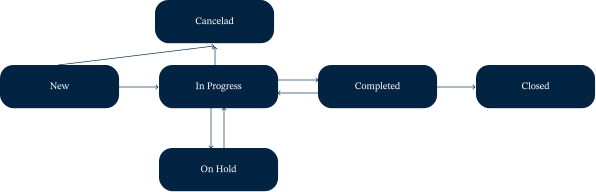
Default work order workflow
Change the workflow
To create a state or change the settings of an existing state, follow these steps:
Go to Settings | Work | Workflow;
In the list of states, click on Create to create a state, or select the desired state to change its settings;
In the General tab, fill in the state details:
State;
Description (required);
Localized Description;
Select the state color. The initial value is gray;
Entity (required): select WORKORDERS.MAINTENANCE;
Is Initial State: by default, entities are created in the state defined as initial;
Is Final State: defines the end of the entity's state flow, so it cannot have transitions to other states;
Is Locked for Changes;
Transitions section: in each row, fill in the Target Entity State and Need Justification columns;
In the Work Order tab, configure the state options, described in the next section;
Click on:
Save and New, to save the state and start a new record;
Save, in the arrow next to the Save and New button, to save only the state.
When creating and editing states, the following rules apply:
There must be one initial state and one final state for each entity;
To fill in the remaining description languages, edit the state with a user who has the language configured in their profile.
Configure work order states
On the screen for creating or editing a state, next to the General tab, the Work Order tab allows you to configure the following options:
Status Board
In the Board Column field, select the Work Hub column in which the state is displayed;
Report
Must Validate Tasks: if active, it is not possible to move to the next state without validating all the tasks of the work order;
Allow Work Report: if active, work orders in this state allow task validation;
Allow Cost Report: if active, work orders in this state allow cost recording;
Allow Assignments: if active, work orders can be assigned to employees.
SLA
Start SLA: if active, when a work order changes to the configured state, the work order's SLA start date is filled in;
End SLA: if active, when a work order changes to the configured state, the work order's SLA end date is filled in.
Down Time
If the down time start is defined but the end is not, the down time will end at the work order's final state;
If the down time end is defined but the start is not, the down time will start at the work order's initial state;
If at least one state is not defined to start or end the down time, the down time settings are lost.
Start Down Time:
If a state is no longer defined as the down time start and there are no other states defined as the start, all work order states are no longer defined as the down time end;
If there is no state defined as the down time end, the final state cannot be defined as the start, because a state cannot be both the start and the end at the same time;
End Down Time: if this field is active, the down time ends when the work order takes on this state.
If a state is no longer defined as the down time end and there are no other states defined as the end, all work order states are no longer defined as the down time start;
If there is no state defined as the down time start, the initial state cannot be defined as the end, because a state cannot be both the start and the end at the same time.
Request
State: state to which the associated request changes when the work order changes to the configured state;
Copy Justification: if active, the reason for the state transition is copied. This way, the reason provided is visible in the request's state transition.
Configuration
Allow change remarks: if active, the remarks can be modified;
Canceled: if active, items in the configured state are considered “trash”;
Can Create From Event;
Start Timer: if active, when a work order changes to the configured state in the Technician app, the work timer starts automatically;
End Timer: if active, when a work order changes to the configured state in the Technician app, the work timer stops.