PT
ES
AO
CV
MZ
Professional
Executive
Public Sector
Omnia
Evolution
The DataMaintenance tool simplifies database backup management, allowing operations such as download, restore, and data and log control.
Access
To access the Data Maintenance tool, follow these steps:
Go to myCegid;
Go to the contract;
Select the Service Management option;
Select the Data Maintenance option in the top-right corner.
Downloading Backups
You can get backup copies of the companies that exist in the subscription.
There are different types of backups available:
FULL: includes a complete backup of the databases, performed on Sunday;
RECENT: includes a complete backup of the databases, performed every day except Sunday;
DIFF Backups
A DIFF backup contains the data that was changed since the last complete backup. Only DIFFs that were generated immediately after a FULL/RECENT backup can be restored.
In the following diagram, you can see that the DIFFs are grouped within their respective FULL/RECENT backups.
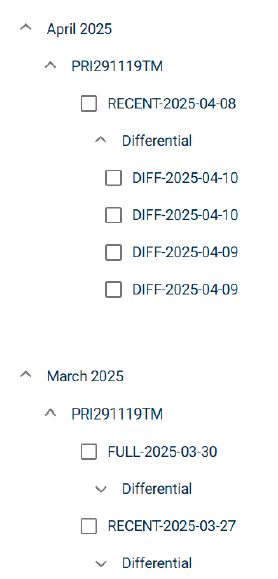
Here, simply select the desired backup(s) and perform the operation. The process will run, and the files will be made available in the FTP repository, in the /DataMaintenance/Databases/Production/Backups/ folder.
The list of backups shown corresponds to the date the list was last updated. To make sure the list is up to date, click the Update Backup List button. This process may take a few minutes to complete.
The backups shown correspond to the last six months.
You can only select a maximum of two files per download.
Restoring Backups
You can restore the file(s) submitted via SFTP, in the /DataMaintenance/Databases/Production/Restores/ folder.
If the backup meets the established criteria, the company will be automatically created in the ERP during the restore. Otherwise, once the restore process is complete, you must:
Go to Primavera Administrator;
Manually create the company, using the same code present in the backup (for example: PRI
XPTO.BAK - company code XPTO ); Fill in the data required for the company.
Note: only backups with a single version are supported.
The system checks whether a DIFF is valid based on the FULL that was submitted. If only a DIFF is submitted, the system validates whether it's compatible with the existing database. You can submit multiple FULLs and DIFFs at the same time.
If one or more files contain an error, the process is canceled and no restore is performed, with the error(s) returned to the log.
The company code is required and consists of four alphanumeric digits.
Data Control
SFTP Connection
You can view and get the SFTP access details for the instance's repository, where you can add or get files for the desired operations. The connection must be made using an FTP client that supports SFTP connections, such as FileZilla.
CheckOut
You can perform an instant backup of the existing databases. The process will run, and the generated files will be made available in the FTP repository, in the /DataMaintenance/Operations/Production/CheckOut/PRIXXXXX.bak folder.
Once the operation is complete, the database will go offline. To reactivate it, you must perform a CheckIn or UndoCheckOut.
Note: any change to the database requires updating the list of databases, which may take a few minutes to complete.
The file name and the database to be used must be the same as the current database you want to replace.
Undo CheckOut
The Undo Checkout feature lets you revert a completed CheckOut operation, i.e., bring the existing database back online.
CheckIn
The CheckIn feature lets you replace a database that has gone through a CheckOut process.
This operation replaces the offline database on the server, so it will return to its online state.
To submit the desired file, you must use the SFTP connection and place the file(s) in the /DataMaintenance/Operations/Production/CheckIn/ folder.
Note: only backups with a single version are supported.
Note: only backups with a single version are supported.
Logs
The Logs page lets you view the records and status of the operations performed.