The tax withholding is the way in which the State collects part of the payable due by tax payers amount in advance. A representative example is the IRS (Personal Income Tax). The State generally imposes this type of withholdings to avoid the accumulation of tax due throughout the year, to avoid non-payment of taxes.
Legal framework
The withheld tax must be paid for the service provided by the entity (in most cases, individual service providers), and is deducted when the customer makes the payment. This means that the issued invoice can specify the value being withheld by the customer, without affecting the invoice total amount.
If the document being used is the Cash Invoice, the withheld amount will affect the total being received by the service provider.
Setting up withholdings
To specify the withholding on the issued documents, you must associate to the customer the applicable withholding scheme and the correct withholding rate for the services provided.
To setup the withholdings in sales, follow these steps:
Step 1: Setting up the service withholding schemes
Access Taxes | Setup Withholding Taxes | Item WHT Schemas and check if the desired scheme has the correct Withholding Rate code.

Step 2: Setting up the withholding schemes
Access Taxes | Setup WithholdingTaxes | Party WHT Schemas and check if the desired scheme has the same item withholding tax schema (configured in step 1).

Step 3: Associating the service withholding to the sales item
Access the item file you wish to withhold in Customers and Items | Sales Items and on the tab Sales associate the Item WHT Schema (configured in step 1).

Step 4: Associating the withholding tax schema to the customer
Access the entity file in Customers and Items | Customers and on the tab Customer associate the Item WHT Schema (configured on step 2).
After performing the association, every time you issue a document to the set up customer, the withholding will be performed on the items with the corresponding rates.

Manually configuring new withholding tax types
Tax withholding is a Portuguese fiscal measure that works as an advance payment or as a payment in installments of taxes owed to the State. The IRC Tax Withholding is automatically setup by the system. However, it is possible to manually set up the new withholding types.
To setup new withholding types, follow these steps:
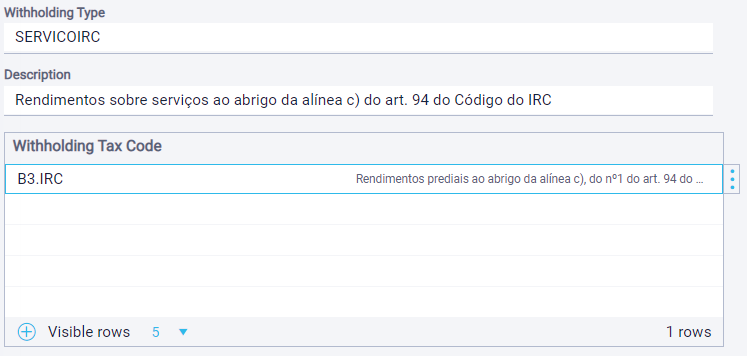
Step 1: Creating the Withholding Type
Access Taxes | Setup Withholding Taxes | WTH Types;
Click Create;
Fill in the fields according to the image presented;
Click Save.

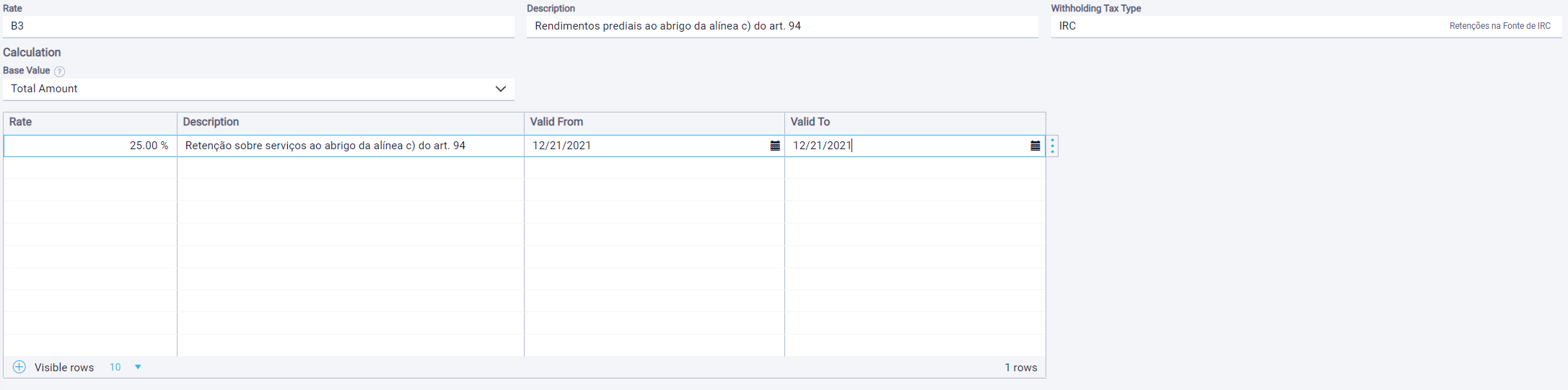
Step 2: Creating the Withholding Code
Access Taxes | Setup Withholding Taxes | WTH Codes;
Click Create;
Fill in the fields according to the image presented;
Click Save.
Step 3: Creating the Item Withholding Schema
Access Taxes | Setup Withholding Taxes | Item WHT Schemas;
Click Create;
Fill in the fields according to the image presented;
Click Save.
Step 4: Creating the Party Withholding Schemas
Access Taxes | Setup Withholding Taxes | Party WTH Schemas;
Click Create;
Fill in the fields according to the image presented;
Click Save.
Step 5: Associating the Customer and Item Withholding Schema
Customers
Access Customers and Items | Customers;
Select the customer file you wish to associate this scheme;
On the tab Customer, fill in the field Withholding Type with IRC;
Click Save.
Note: If you wish that all customers have this scheme associated, you can mark this option as default. For that, access Setup | Documents | Customer Groups, select the default groups and on the field Party Withholding Tax Schema select IRC.
Items
Access Customers and Items | Sales Items;
Select the file of the desired item;
On the tab Sales, fill in the field Withholding Tax Type with SERVICOSIRC;
Click Save.